PDF to Excel
Convert tables in a PDF into an Excel spreadsheet (.xlsx) for free — entirely in your browser. Your file is never uploaded to a server.
How to convert a PDF to Excel
- Open the tool and add your PDF — drag and drop it, or click “Add PDFs.”
- Choose the pages to convert. The original-page selector only changes the page shown for comparison. Set Pages to 1, 1–3 or another range to limit conversion, or select a table area. Review and correct cells, split or merge columns, and use Undo or Redo before converting.
- Download the .xlsx. Choose Convert to prepare the current table corrections. Check Preview, then Save and Download the reviewed spreadsheet. Recheck totals, dates and identifiers in the downloaded file.
Converted on your device — never uploaded
The document tools process file contents in your browser rather than uploading them for processing. Working files remain in page memory; downloads remain wherever you save them. Informational pages may load ads or analytics; the document-opening page excludes them. Read the privacy policy for details.
Numbers and dates become real Excel values
LambiPdf writes numbers as numbers and dates as real Excel dates, so you can sum, sort and filter straight away — while IDs and account numbers with leading zeros are kept as text so they aren't mangled. Tables with compatible layouts can be joined across pages and repeated column headers removed. Complex layouts may need manual corrections; extraction is not guaranteed to reproduce every table accurately.
What converts well (and what to check)
- Text PDFs with tables convert directly — the text is already in the file.
- Scanned PDFs (photos of pages) have no text layer, so they are read with built-in OCR in the same step. Recognition can misread characters; check numbers against the original.
- Complex or borderless layouts can sometimes merge columns; choose a table area, set a page range and correct cells or columns. Inspect the exported spreadsheet as well as the preview.
Need the other direction?
You can also go the other way and turn a spreadsheet back into a document with the free Excel to PDF and CSV to PDF converters.
Worked example: a supply order with checkable totals
Try the fictional supply-order PDF. It contains one text-based table, three items and four columns. No real customer or account information is included. Download the sample, open the PDF to Excel tool and choose that file.
- Automatic extraction can include the title and footer as extra rows. Select the table area around its header and three item rows, then choose Extract selected area. For this sample, the area fields can be Left 5%, Top 14%, Width 90%, Height 17%. Compare the detected table with the original. The three item names are Notebook, Pen set and Desk tray. Quantity, Unit price and Line total should be separate columns.
- Keep the first row as headers. Check that quantities are 3, 2 and 1, and the line totals are 37.50, 9.50 and 18.00. A trailing zero may disappear when a value becomes an Excel number; 37.5 and 37.50 represent the same amount.
- Convert, preview and save. Add the three line-total cells in your spreadsheet application: the expected total is 65.00 DKK. Compare against the PDF rather than trusting the preview alone.
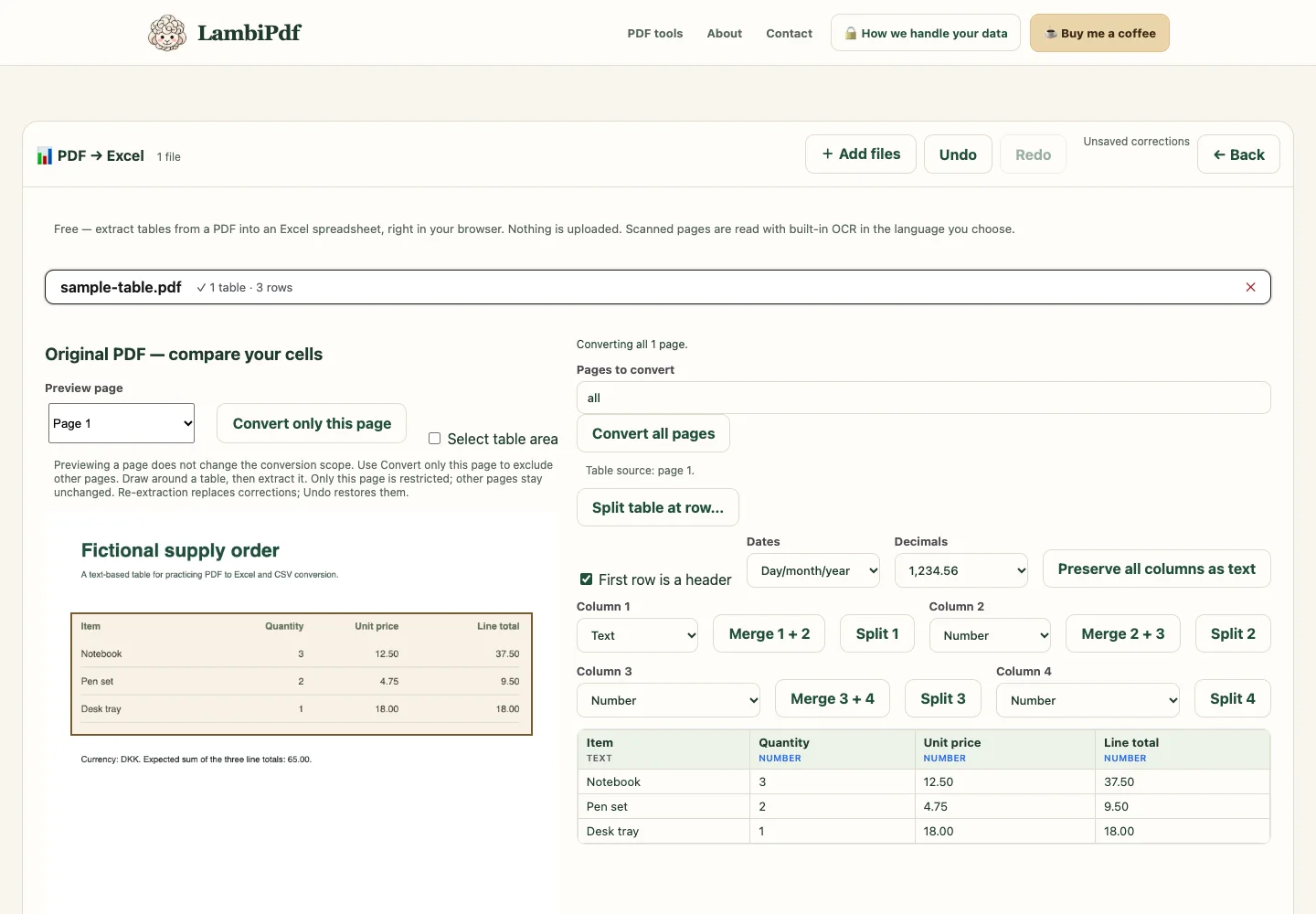
For comparison, download the workbook generated by LambiPdf. The example verifies numeric values in the workbook, not the formatting behavior of every spreadsheet application. A PDF stores page positions; it usually does not store spreadsheet cell boundaries.
Why one viewed page can still show several tables
The original-page selector changes the page you are looking at. It is separate from the Pages conversion range. Choose Convert only this page or enter a range to exclude other pages. Table tabs represent detected table regions, not PDF page numbers; a page can contain several tables, while a continuing table can cover several pages.
When the columns need correction
- Two values share one cell: select a tighter table area, or use Split on the affected column. Check rows with long descriptions after splitting.
- A description is spread across cells: merge the relevant columns and verify that amounts did not move into the description.
- A date or identifier changed: set that column to text if its exact representation matters. Leading zeros and ambiguous dates deserve particular attention.
- Undo changed the preview: generate the export from the restored table and inspect the downloaded cells. The converter invalidates prepared results when corrections change.
A clean sample is a practice aid, not a guarantee for scanned statements, merged cells or irregular reports. Check row counts, omitted-text warnings and totals on your own documents.
More free PDF tools
PDF to Excel — FAQ
Is the PDF to Excel converter free?
Yes — it's completely free, with no sign-up and no watermark.
Are my files uploaded?
No. The conversion runs entirely in your browser; file contents are not uploaded for processing.
Will numbers and dates be usable in Excel?
Yes. Clean numbers are written as numbers and dates as real Excel dates, so you can sum, sort and filter. Leading-zero codes stay as text.
Does it work with scanned PDFs?
Yes. Scanned pages are images with no text, so they are read with built-in OCR (45 languages) during the conversion, on your device — you don’t need to run OCR and add the file again. Check the recognized cells against the original.
Can it handle tables that span several pages?
Yes. Tables with the same columns are joined across pages and repeated headers are removed.
Which apps can open the file?
The .xlsx opens in Microsoft Excel, Google Sheets, Apple Numbers and LibreOffice Calc.